 Nails Keyboard
Themes
A keyboard that matches your nails
You chose that colour on purpose. Your keyboard can wear it too.
Match my nails
Open Themes, choose Match my nails, and pick the colour of the set you are wearing. The whole keyboard is drawn in it, light or dark as the colour needs, with keys you can still read. Any colour works. It is part of Pro.
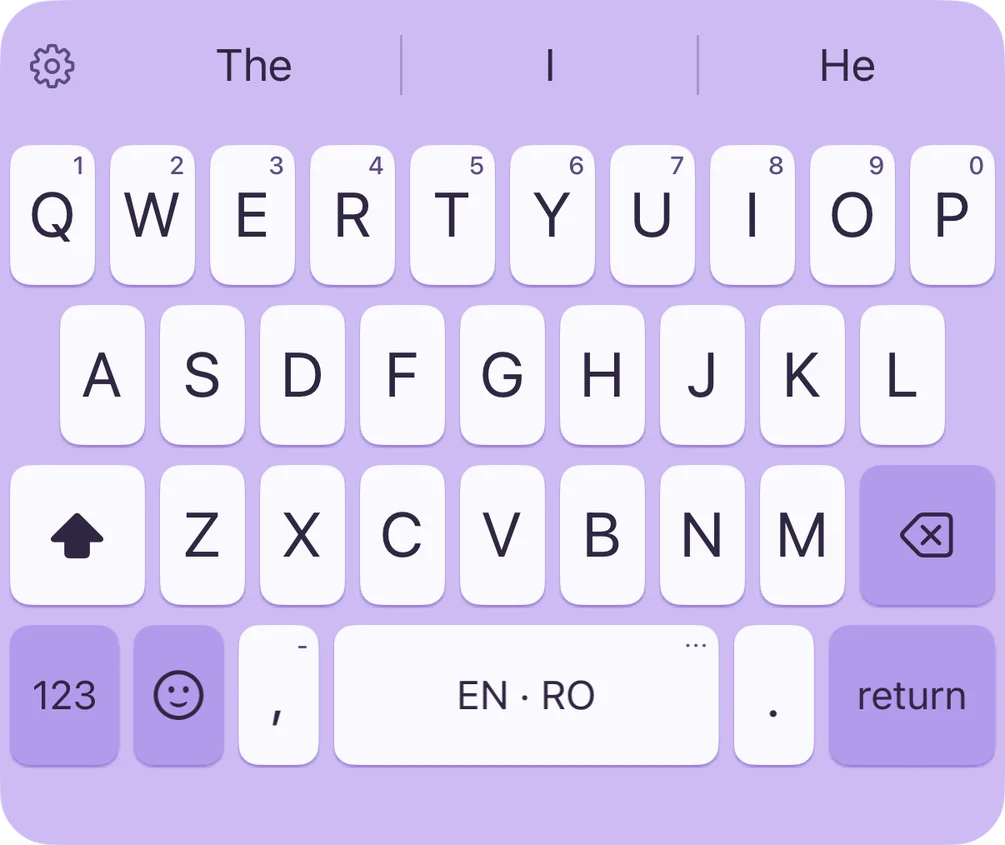
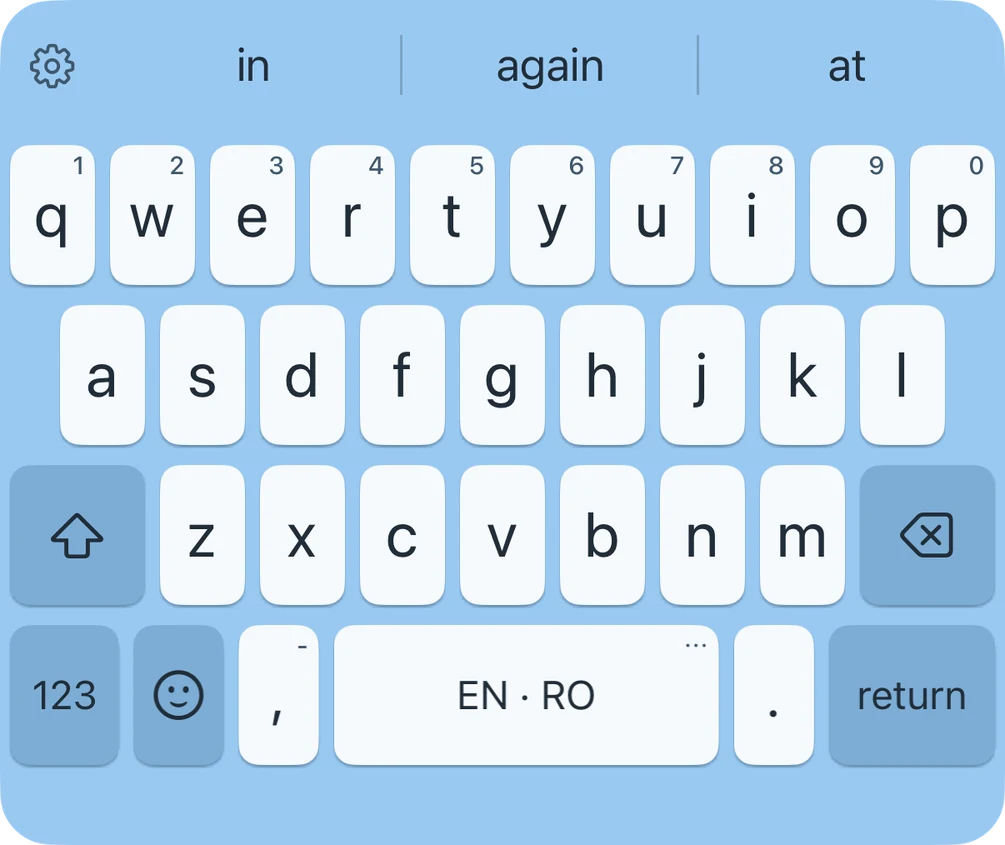
Fifteen themes named after nails
From Nude, French and Cherry to Sky, Mint and Midnight. Classic, Nude and Noir are free; the others come with Pro. Classic follows your iPhone's light or dark appearance.
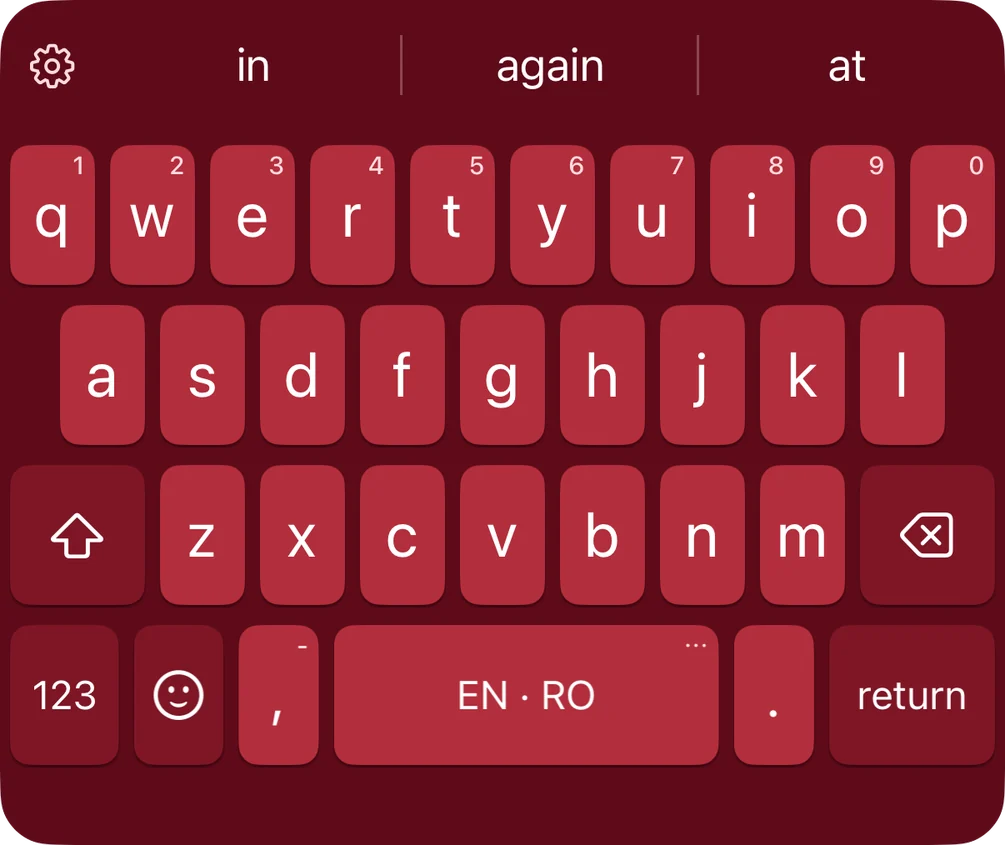
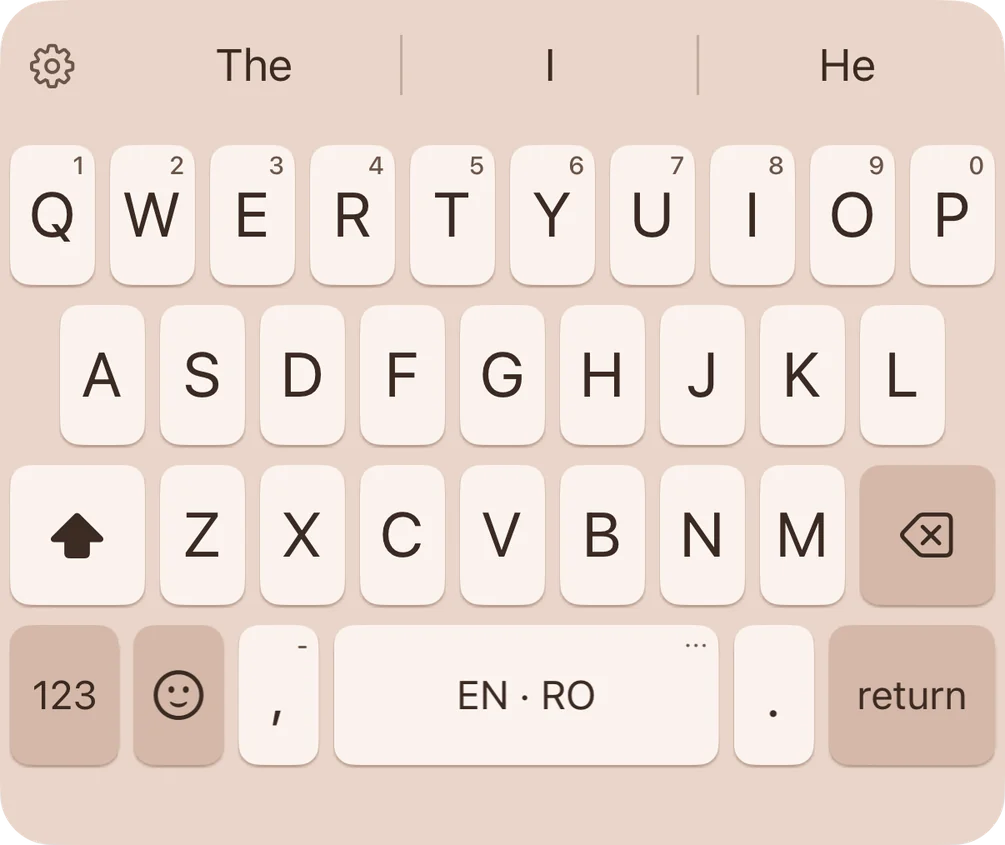
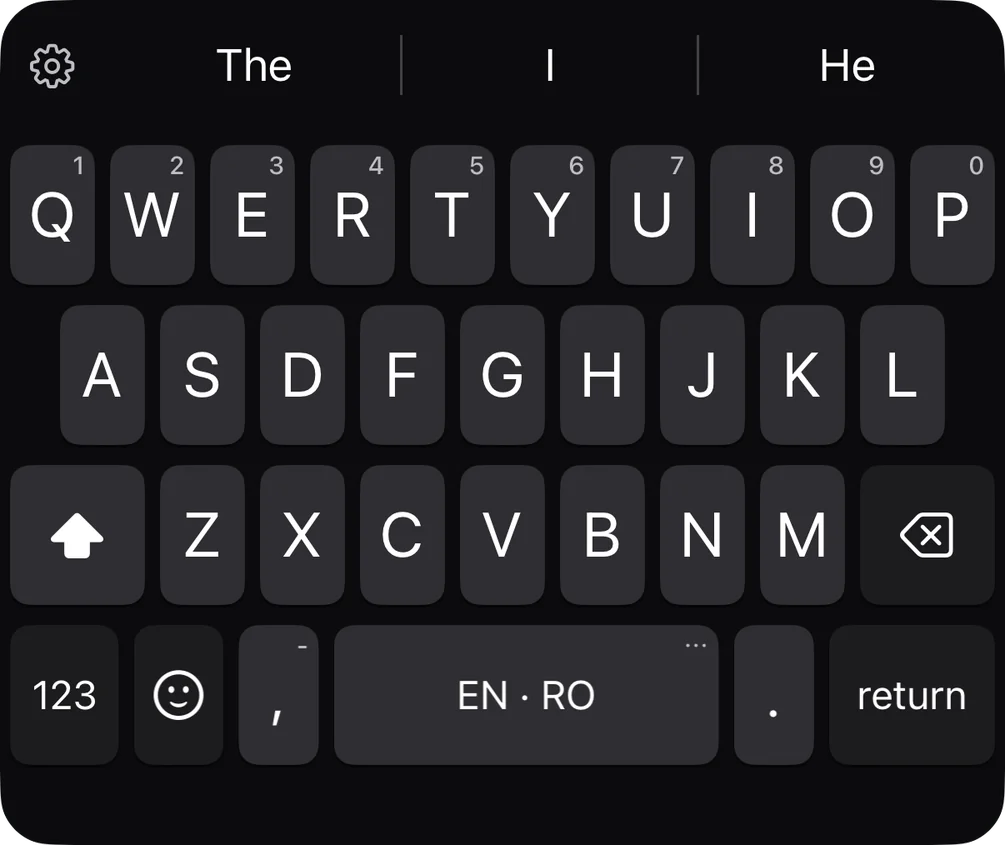
New set, new keyboard
Changing takes a few seconds: open the app and tap Themes, or tap the gear on the keyboard and then Themes. Red this month, lilac the next.
Still a keyboard for nails underneath
The colour is the part you see. Under it, Nails Keyboard moves every tap back up by your nail length before it picks a key, and its autocorrect expects the slips long nails make. Typing, autocorrect and swipe are free.